📬 Automated Reports in Flashpricer
Stay ahead without the manual work. With Flashpricer, you can schedule insightful reports to be delivered straight to your inbox—tracking key pricing trends, marketplace changes, and performance opportunities.
🔗 Getting Started
-
Navigate to the Reports Page:
👉 https://app.flashpricer.com/products/reports -
Click "Schedule New Report"
-
Choose your report type:
-
📊 Custom Report – Build your own, fully tailored report
-
📈 Preconfigured Report – Choose from powerful, ready-made options
-
🛠️ Custom Report – Build Your Own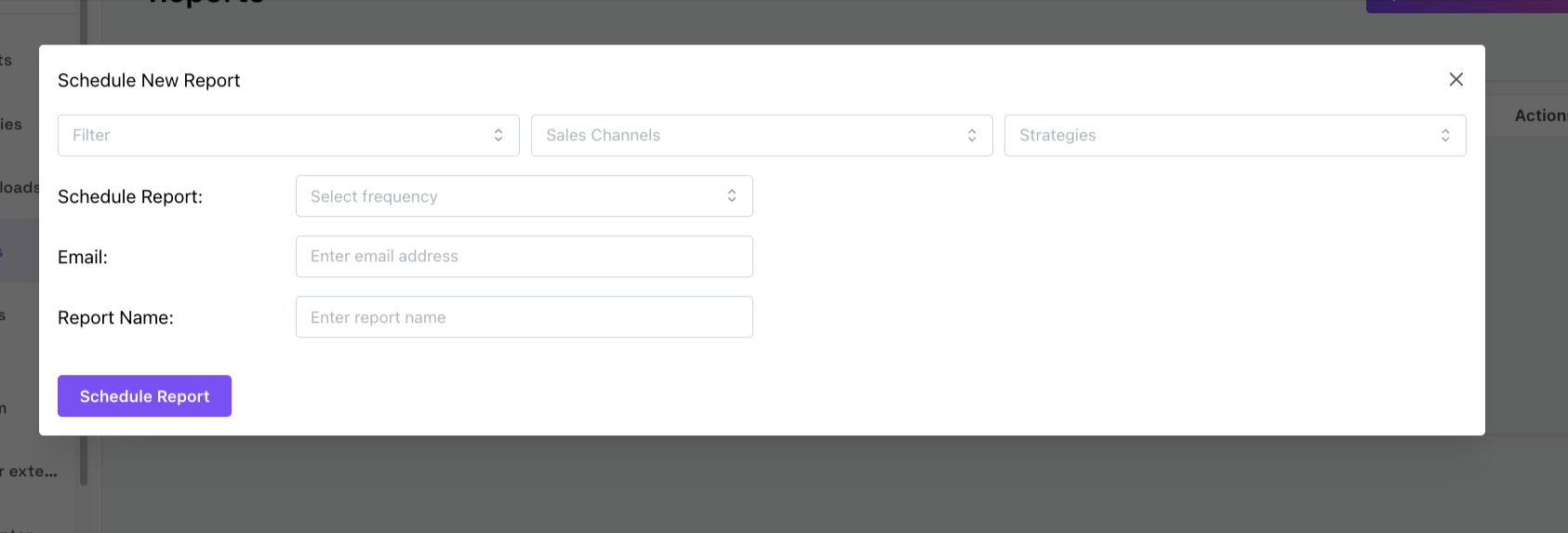
Perfect for users who want complete control over what data is included.
🔧 Customization Options:
-
Filters: Use any filters available on the Products page.
👉 Need help with filters? View preset filters here -
Sales Channels: Choose one or more marketplaces (e.g., Walmart, Amazon).
-
Strategies: Select the pricing strategies you want the report to focus on.
-
Report Frequency:
-
Daily
-
Weekly
-
Monthly
-
-
Recipients: Add one or multiple email addresses to receive the report.
-
Report Name: Give your report a clear, descriptive name to stay organized.
✅ Once everything is set, click "Schedule Report"—and you’re done!
🧠 Preconfigured Report – Use Expert Templates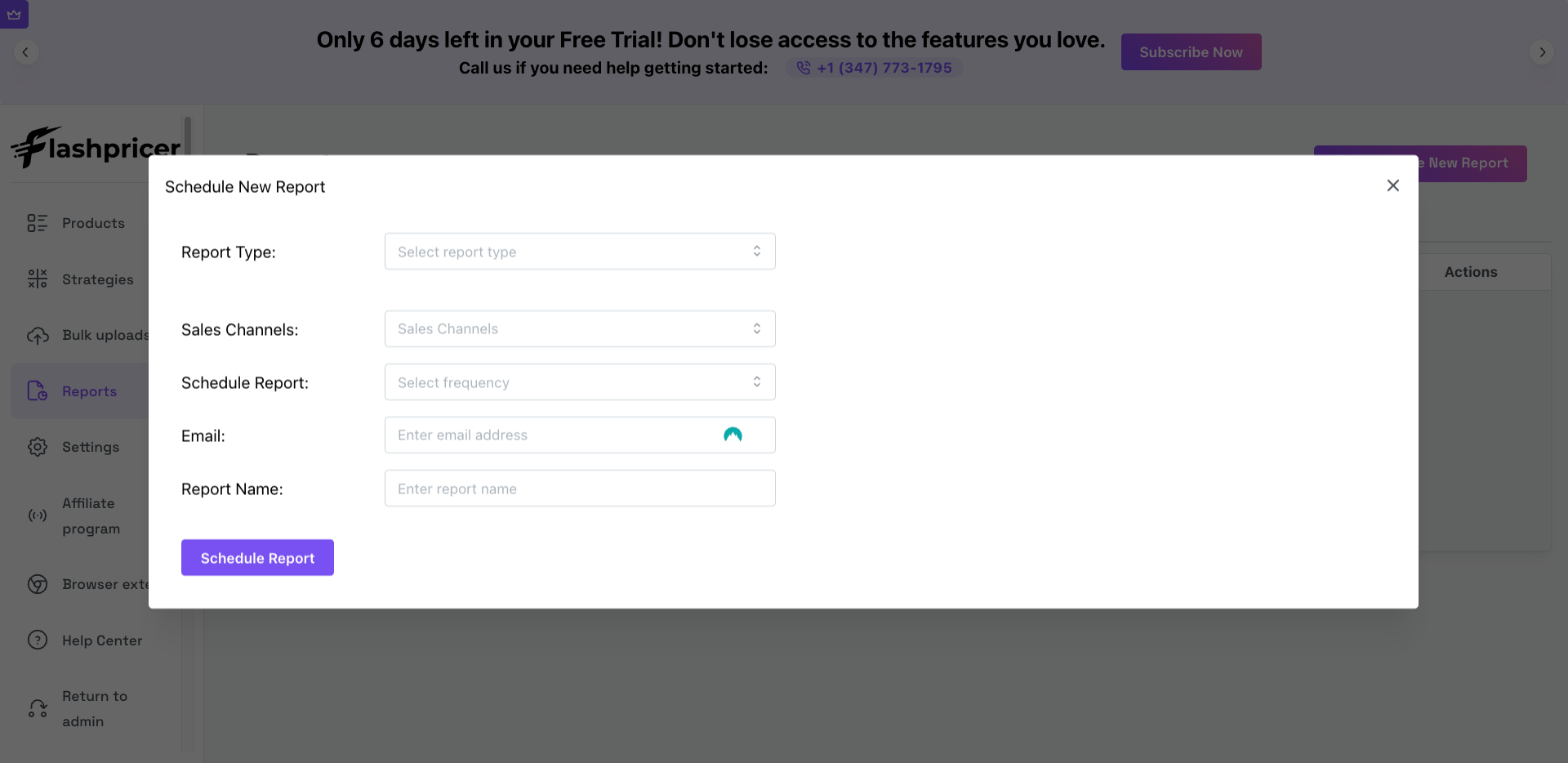
Save time with high-value, preset reports designed to highlight what matters most.
🗂️ Available Preconfigured Reports:
-
Default View: Full data export—no filters applied.
-
Not Repricing (Needs Attention): Identify listings that are not actively repricing due to missing configurations or strategies, ensuring these listings are addressed to maximize sales potential.
-
Generating Sales at Max: Items selling at maximum price—may have room to increase profits.
-
Inaccurate PL (Last 30 Days): Identify listings with missing cost data that have generated sales in the last 30 days, ensuring accurate profit and loss calculations for better decision-making.
-
Listings with No Sales (Needs Attention): Highlight listings that are not generating sales and may need optimization.
-
Generating Sales at Min Price: Identify listings that are selling but are priced at the minimum, potentially leaving profit on the table.
-
Suppressed Buybox: Highlight listings where the buybox is suppressed, which may require pricing or strategy adjustments.
-
Errors on Channel: Identify listings with errors on the channel that need immediate attention.
⚙️ Configuration Options:
-
Sales Channels: Choose where you want the report to pull data from.
-
Report Frequency: Daily, Weekly, or Monthly.
-
Recipients: Add your preferred email(s).
-
Report Name: Add a name to keep it organized.
✅ Then click "Schedule Report" and you're all set.
📑 Report Management: Scheduled & History Tabs
Once reports are created, manage them from the two tabs on the Reports page:
📆 Scheduled Reports Tab
View and manage all your active or paused scheduled reports.
Here you’ll see:
-
Report Info: Name & creation date
-
Frequency: How often it's sent
-
Email: Who receives it
-
Filters: Any applied filters
-
Report Type: Custom or Preconfigured
-
Status: Active or Paused
-
Actions: Pause, resume, or delete your report
🕓 History Tab
See the log of previously generated reports and download past results.
Includes:
-
Report Info: Frequency, channels, and filters used
-
Report Date: When the report was generated
-
Status: Completed, processing, or failed
-
Download URL: Link to download the report
-
Number of Rows: Total rows in the report
✅ Tips for Success
-
Want to test before committing? Schedule a one-time report and see the data flow.
-
Need help choosing filters or understanding report insights? Schedule a strategy session with our support team.
If you need further help, our support team is always here for you. Just email success@flashpicer.com
Happy reporting! 🎯